



Most procurement problems are not purchasing problems. They are visibility problems. A team member submits a purchase request, it goes to a manager who is traveling, nothing happens for a week, and the vendor either follows up or the order never gets placed. The purchase module is working. The odoo purchase order approval workflow is not.
Odoo supports PO approval natively — but only with a single threshold. One amount, one approver, no routing logic beyond that. For procurement teams that need more structure — different odoo purchase approval levels for different spend ranges, a requisition step before the PO is even created, escalation when no one responds — native Odoo requires either workarounds or an additional module.
This guide covers both: what native Odoo purchase approval handles, where it falls short, how the Material Purchase Requisitions module builds a full odoo multi level approval chain, and what the complete odoo procurement workflow looks like once it is running.
Answer capsule: Odoo includes a basic purchase order confirmation flow but does not support multi-level approval routing natively. For teams that need Employee → Manager → Procurement approval chains with amount-based thresholds, the Material Purchase Requisitions module adds configurable odoo material requisition approval without custom development. The requisition step also captures the original request before it becomes a formal PO — giving procurement full visibility from request to delivery.
What Odoo purchase approval does natively
Odoo’s Purchase module includes a purchase order approval threshold under Settings → Purchase → Purchase Order Approval. When you enable this, orders above the set amount require a user with “Purchase Manager” access to confirm the order before it moves forward.
For small teams with a flat approval structure — “anything over $1,000 needs a manager” — this covers the requirement with no additional configuration. That is the full scope of native Odoo PO approval.
Where native Odoo po approval stops
Beyond that single threshold, native Odoo purchase approval does not support:
- Amount-based routing to different approvers — a $3,000 order going to a department manager and a $30,000 order going to the procurement director
- Sequential multi-level approval — requiring both the department head and the CFO to sign off before the PO gets confirmed
- A requisition step — capturing the purchase request before it becomes a formal PO, so the requester’s intent gets documented and reviewed first
- Automatic escalation — defining what happens when an approver does not respond within 24 or 48 hours
- Approval audit trails per order — a timestamped record of who approved, when, and at what stage
- Vendor or category-specific routing — sending all IT equipment orders to the IT manager regardless of amount
These are the requirements most procurement teams at 30+ employee companies have. Meeting them in native Odoo requires either Odoo Studio (Enterprise only, technical setup required) or a purpose-built requisition and approval module.
The Material Purchase Requisitions module — how it works
The Zehntech Material Purchase Requisitions module adds a configurable requisition and odoo multi level approval layer directly inside Odoo’s Purchase module. Each part of the workflow handles a different gap in native Odoo po approval.
The requisition step
Before a formal PO exists, employees submit a purchase requisition. This captures the item, quantity, estimated cost, and business justification. The procurement team reviews the requisition before it ever becomes a purchase order — preventing duplicate orders, off-contract spending, and purchases without budget backing.
This step alone removes a significant portion of procurement noise. Instead of employees emailing managers or creating POs that get rejected and deleted, every request follows a documented path through the odoo procurement workflow.
Multi-level approval chains
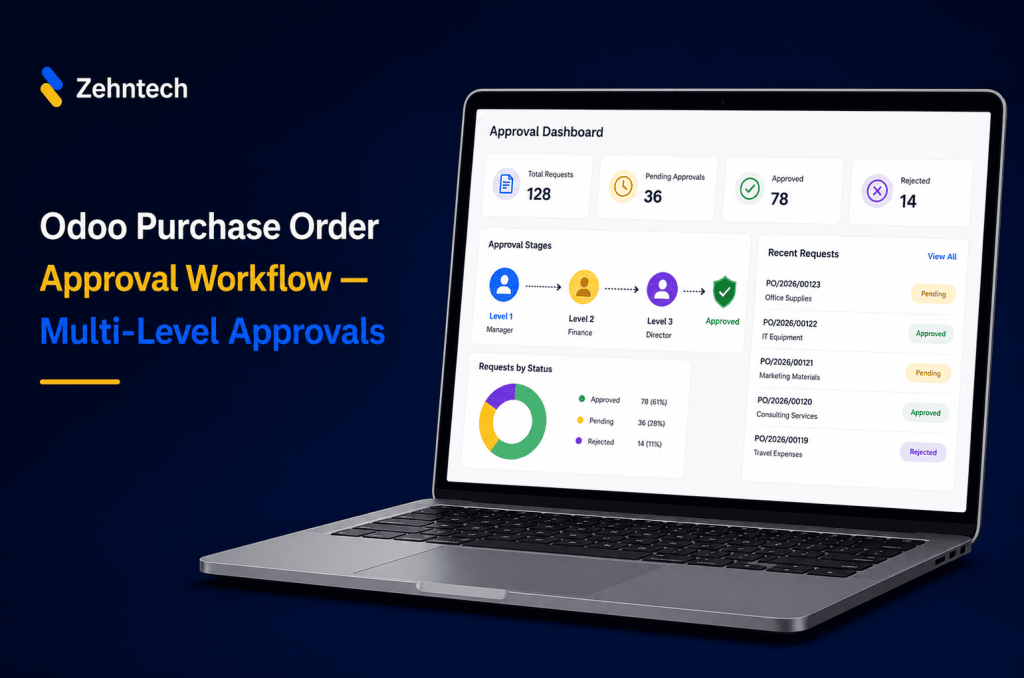
Once an employee submits a requisition, the approval chain activates based on the configured rules. A standard odoo material requisition approval chain runs like this:
- Employee submits the requisition
- Direct Manager approves or rejects (system triggers this automatically)
- Procurement Manager reviews and converts to PO if the manager approved

Each level is configurable. Teams can set different chains by department, spend category, or amount range. A marketing team’s requests can route differently from IT purchases — without any custom development.
Amount-based odoo purchase approval levels
The module changes approval routing based on order value. A common configuration:
- Under $500 — auto-approved, goes directly to procurement
- $500–$5,000 — department manager approval required
- Above $5,000 — both department manager and finance director must approve
You set these thresholds in the module configuration and update them without developer access. This is what makes odoo purchase approval levels genuinely flexible rather than a fixed single-tier gate.
Escalation rules
If an approver does not act within a set number of hours, the system escalates automatically — either to the approver’s manager or to a fallback user. Requests no longer stall because someone is traveling or missed the notification. The odoo procurement workflow keeps moving regardless of individual availability.
Audit trail per requisition
The module logs every approval action against the requisition: who submitted it, who approved at each level, timestamps for each action, and any notes or rejection reasons. Finance and procurement teams keep a clean record for every order — useful for audits, budget reviews, and resolving disputes with vendors or internal stakeholders.
Native Odoo vs. Material Purchase Requisitions — comparison
| Capability | Native Odoo | Material Purchase Requisitions |
|---|---|---|
| Basic PO approval threshold | Yes | Yes |
| Requisition step before PO | No | Yes |
| Multi-level sequential approval | No | Yes |
| Amount-based routing to different approvers | No | Yes |
| Department or category-specific routing | No | Configurable |
| Automatic escalation on non-response | No | Yes |
| Per-order approval audit trail | No | Yes |
| Requires Odoo Enterprise | No | No |
| Developer setup required | No | No |
| Works on Odoo v19 | Yes | Yes |
The native odoo po approval covers a single control point — good enough for small teams. The requisition module covers the full procurement approval lifecycle, from initial request to confirmed PO, across all the odoo purchase approval levels your team needs.
How to set up multi-level purchase order approval in Odoo — step by step
This section covers the complete setup using the Material Purchase Requisitions module on Odoo v19. The full odoo purchase order approval workflow takes under an hour to configure from scratch.
Step 1 — Install the Material Purchase Requisitions module
In your Odoo backend, go to Apps → search “Material Purchase Requisitions” → Install. The module adds a “Purchase Requisitions” menu to your Purchase module and a configuration section under Purchase Settings.
You can also install directly from the Odoo App Store.
Step 2 — Enable multi-level approval in Purchase Settings
Go to Settings → Purchase → Approval Configuration. Enable the “Multi-Level Approval” toggle. You will see fields for the number of approval levels and the default chain. Save before moving to the next step.
Step 3 — Configure your approval rules
Go to Purchase → Configuration → Approval Rules. Create rules for each scenario your procurement process requires.
For each rule, set:
- Trigger condition — amount range, department, product category, or vendor
- Approver at each level — specific user or job position
- Escalation time — hours before auto-escalation activates
- Fallback approver — who receives the escalation
Start with one rule for your most common case (for example, all orders over $1,000 require manager approval). Add more rules after testing the first.
Step 4 — Submit a test requisition
Go to Purchase → Requisitions → New. Fill in the product, quantity, estimated unit price, and a brief reason. Submit it and verify that:
- The correct approver receives the notification
- The approval chain matches the rule you configured
- The audit log records the submission with a timestamp
If the system notifies the wrong approver, return to the approval rule and check the trigger conditions — amount ranges often need adjustment on the first pass.
Step 5 — Convert approved requisitions to purchase orders
Once the final approver confirms a requisition, the procurement team converts it to a PO with one click: Requisition → Confirm → Create Purchase Order. The PO inherits the vendor, product, and quantity from the approved requisition. No re-entry needed.
From here, the standard Odoo purchase workflow continues — RFQ, vendor confirmation, receipt, and bill matching.
What procurement looks like after go-live
The difference most teams notice first is not approval speed — it is the drop in approval-related messages.
Before the module, procurement teams typically field requests by email, WhatsApp, or informal conversations. After go-live, employees know the path: submit a requisition in Odoo. The system handles the routing, the notifications, and the escalation. Procurement stops chasing approvers and tracking which requests are pending.
For managers, the approval inbox in Odoo replaces a mailbox full of forwarded emails. They see what is waiting, approve or reject from one screen, and add notes if something needs clarification. The odoo multi level approval process becomes a two-minute task instead of a scattered back-and-forth.
For finance teams, month-end reviews get faster. Instead of reconstructing which purchases happened and why, the audit trail on each requisition provides the answer without anyone needing to ask.
The clearest sign that the setup is working: the procurement manager stops being the informal traffic controller for purchase requests. That role was always a workaround — the module removes the need for it entirely.
Frequently asked questions
Q1: Does Odoo natively support multi-level purchase order approval?
Odoo’s native Purchase module includes a single approval threshold — orders above a set amount require a Purchase Manager to confirm. It does not support multi-level chains, amount-based routing to different approvers, or escalation rules. For those capabilities, you need the Material Purchase Requisitions module or a custom build via Odoo Studio.
Q2: What is the difference between a purchase requisition and a purchase order in Odoo?
A purchase requisition is the internal request step — an employee asks for something to be purchased, and the request moves through an approval chain before anyone places a formal order. A purchase order is the actual document sent to the vendor. The Material Purchase Requisitions module adds the requisition step before the PO, so purchases go through review before they become vendor commitments.
Q3: Can I configure different odoo purchase approval levels for different departments?
Yes. The module supports department-specific approval rules. You can route IT purchase requests to the IT manager while marketing requests go to the marketing head, regardless of order amount. Configure rules in Purchase → Configuration → Approval Rules and update them without developer access.
Q4: What happens if an approver does not respond in time?
Escalation rules handle this automatically. You set an escalation time (24 or 48 hours is common) and a fallback approver. If the primary approver does not act within that window, the system escalates the requisition and notifies the fallback user. The original approver also gets a reminder notification.
Q5: Does this module work with Odoo Community or only Enterprise?
The Material Purchase Requisitions module works with both Odoo Community and Odoo Enterprise on v19. It does not require Odoo Studio or any Enterprise-only features. The odoo multi level approval configuration runs entirely within the module’s own settings.
Q6: Can I set multiple odoo purchase approval levels for the same department?
Yes. You can create multiple rules for the same department with different amount ranges pointing to different approvers. For example: orders $0–$2,000 route to the department manager, orders $2,001–$10,000 require both the department manager and finance controller, orders above $10,000 require CFO approval. Each rule works independently.
Choosing the right purchase approval setup
The choice between native Odoo approval and a multi-level requisition module comes down to one question: how many distinct approval scenarios does your procurement process actually need?
If the answer is one — “everything above $X needs one person to approve” — native Odoo covers it without additional setup. Enable the threshold in Purchase Settings and you are done.
If the answer is more than one — different approvers at different amounts, department-specific routing, a requisition step before the PO, escalation for unresponsive approvers — native Odoo will require manual workarounds or the Requisitions module that handles all of it in one configuration.
The Material Purchase Requisitions module is the faster path for teams whose procurement has outgrown a single-level odoo po approval gate. Setup takes under a day, no custom development is needed, and the audit trail works from the first requisition.
If you also manage invoice approvals alongside purchase approvals — which most finance teams do — see how the Odoo Invoice Dynamic Approval Flow handles the accounts payable side of the same problem.
For help mapping your approval configuration to the right module setup, Zehntech’s Odoo implementation team has configured purchase workflows for clients across manufacturing, distribution, and professional services.
For broader context on how Odoo automates operations like these, see how Odoo is transforming business operations in 2026.
- What Odoo purchase approval does natively
- The Material Purchase Requisitions module — how it works
- Native Odoo vs. Material Purchase Requisitions — comparison
- How to set up multi-level purchase order approval in Odoo — step by step
- What procurement looks like after go-live
- Frequently asked questions
- Choosing the right purchase approval setup