


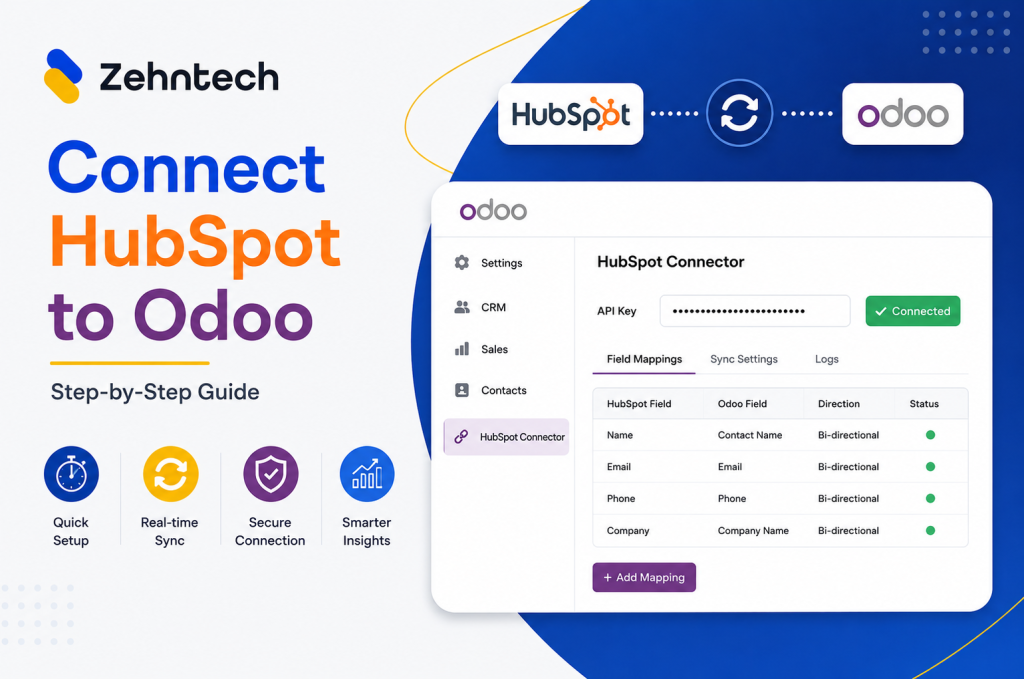

This guide walks you through connecting HubSpot to Odoo using the Zehntech Odoo HubSpot Connector from generating your API key in HubSpot to your first live sync. Most teams complete this in under 10 minutes.
Prerequisites
Before you begin:
- Odoo version: v16, v17, v18 or v19 (Odoo.sh or On-Premise)
- Active HubSpot account with permission to create Private Apps (Admin access required for API key generation)
- Required Odoo modules (all standard — no additional purchase needed): CRM (crm), To-Do (project_todo), Calendar (calendar), Contacts (contacts), Discuss (mail), Project (project)
If any required Odoo modules are not installed, install them from Apps → search module name → Install before proceeding.
Step1 – Generate Your HubSpot Private App API Key
The Zehntech HubSpot Connector uses HubSpot’s Private App API the secure, recommended authentication method.
- Log into your HubSpot account
- Click the Settings icon (gear icon, top-right)
- In the left sidebar: Integrations → Private Apps
- Click Create a private app
- Name your app (e.g. “Odoo Integration”) and add a description
- Go to the Scopes tab — add the following scopes:
crm.objects.contacts.readandcrm.objects.contacts.writecrm.objects.companies.readandcrm.objects.companies.writecrm.objects.deals.readandcrm.objects.deals.writecrm.objects.notes.readandcrm.objects.notes.writecrm.objects.calls.readandcrm.objects.calls.write
- Click Create app → click Continue creating on the confirmation dialog
- Copy the Access token shown on the next screen — you will need this in Step 3
Important: Store this token securely. It will only be shown once. If lost, generate a new token from the same Private Apps screen.
Step 2 – Install the Zehntech HubSpot Connector
- In Odoo, go to Apps (main menu)
- Search:
zehntech_odoo_hubspot_connector - Click Install
Installation takes under 1 minute. No Odoo restart required.
Step 3 – Enter Your HubSpot API Key in Odoo
- In Odoo, go to Settings → Technical → HubSpot Connector (or search “HubSpot” in Settings)
- Paste your HubSpot Private App access token into the API Key field
- Click Save & Test Connection — you should see a green “Connection Successful” confirmation
If you see an error at this step, verify:
- The access token was copied completely (no leading/trailing spaces)
- The Private App scopes include all required CRM scopes listed in Step 1
- Your HubSpot account is active and you have admin access
Step 4 – Configure Field Mappings
Field mappings tell the connector which HubSpot properties map to which Odoo fields. Default mappings are pre-configured for standard fields.
Contact field mappings (defaults):
- HubSpot
firstname+lastname→ Odoo Contactname - HubSpot
email→ Odoo Contactemail - HubSpot
phone→ Odoo Contactphone - HubSpot
company→ Odoo Contactcompany_name
Company field mappings (defaults):
- HubSpot
name→ Odoo Customername - HubSpot
website→ Odoo Customerwebsite - HubSpot
phone→ Odoo Customerphone
Custom field mappings:
To map a HubSpot custom property to an Odoo custom field:
- Go to Settings → HubSpot Connector → Field Mappings
- Click Add a line
- Select: HubSpot object type → HubSpot property name → Odoo model → Odoo field
- Set sync direction (HubSpot → Odoo, Odoo → HubSpot, or Both)
- Save
Step 5 – Configure Sync Direction and Filter Rules
- In Settings → HubSpot Connector → Sync Settings, configure:
- Contacts: Bi-directional / HubSpot → Odoo only / Odoo → HubSpot only
- Companies: Bi-directional / HubSpot → Odoo only / Odoo → HubSpot only
- Deals/Opportunities: Bi-directional / HubSpot → Odoo only / Odoo → HubSpot only
- Activities: Bi-directional / HubSpot → Odoo only / Odoo → HubSpot only
- Filter rules — optionally restrict which records sync:
- By HubSpot owner (sync only contacts assigned to specific sales reps)
- By deal stage (sync only deals past a certain pipeline stage)
- By Odoo CRM team
Step 6 – Enable Sync and Test
- In Settings → HubSpot Connector, toggle Real-Time Sync: Enabled
- Click Sync Now to run an initial full sync
- After sync completes, verify by:
- Opening a contact in Odoo that exists in HubSpot — confirm fields match
- Making a change to that contact in HubSpot — in Odoo, refresh the record after 10 seconds to confirm the update appears
First sync note: The initial full sync may take 1–5 minutes depending on the number of records. Subsequent syncs are real-time.
Common Setup Mistakes
Missing API scopes: The most common error at Step 3. Return to HubSpot → Private Apps → edit your app → add missing CRM scopes, then copy the refreshed token.
Required Odoo modules not installed: If any of the six required modules (CRM, To-Do, Calendar, Contacts, Discuss, Project) are not installed, the connector will show an error on install. Install the missing modules first.
Duplicate contacts after first sync: This happens if the same contact exists in both platforms with slightly different email formats. The deduplication logic matches on email address — ensure contact emails are consistent in both systems before running the initial sync.
Frequently Asked Questions
Does the connector require any modules beyond the standard Odoo modules listed?
No. All required modules (CRM, To-Do, Calendar, Contacts, Discuss, Project) are standard Odoo modules included with any Odoo subscription. No additional Zehntech base module is required.
What support is included after purchase?
You receive 90 days of free support from the Zehntech team at odoo-support@zehntech.com. Support covers installation, API key setup, field mapping configuration, sync rule setup and troubleshooting.
Ready to Connect HubSpot and Odoo
Custom HubSpot-Odoo integration development: $3,000–$8,000+. Zehntech Odoo HubSpot Connector: $70.00 one-time. 90 days of support included. Live in under 10 minutes.
Install the Odoo HubSpot Connector — $70.00 one-time →
- Prerequisites
- Step1 - Generate Your HubSpot Private App API Key
- Step 2 - Install the Zehntech HubSpot Connector
- Step 3 - Enter Your HubSpot API Key in Odoo
- Step 4 - Configure Field Mappings
- Step 5 - Configure Sync Direction and Filter Rules
- Step 6 - Enable Sync and Test
- Common Setup Mistakes
- Frequently Asked Questions
- Ready to Connect HubSpot and Odoo