


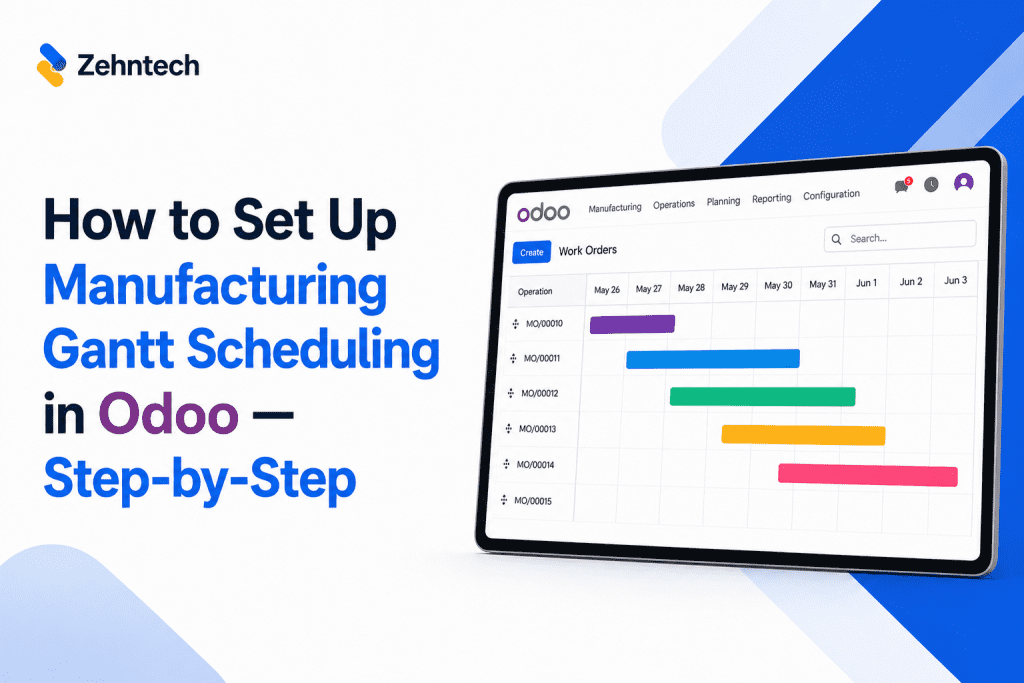

Most manufacturing teams assume that advanced Gantt scheduling requires custom development, a separate tool, or both. In reality, the setup takes under 10 minutes inside Odoo—and the system works immediately with your existing manufacturing data.
Here’s exactly how to go from install to your first production schedule.
Prerequisites — You Already Have These
- Odoo version: v16, v17, v18, or v19
- Modules enabled: Manufacturing (mrp), Inventory (stock), and Discuss (mail) — all standard in any Odoo install
- No base Gantt app required — the Advanced Gantt for Manufacturing is standalone
- No external tools — everything runs inside Odoo
If you have a working Odoo instance with the Manufacturing module already enabled (because you’re using Odoo for production planning), you meet the requirements.
Step 1: Install the Advanced Gantt App — 1 Minute
Navigate to Apps in Odoo. Search for "advanced_gantt_manufacturing" or "zehntech_advanced_gantt".
Click Install on the Zehntech app. The system will prompt you to restart. Let it restart—this takes 30 seconds.
That’s it. The app is now live on your instance.
Step 2: Configure Your First Work Center — 3 Minutes
Navigate to Manufacturing → Work Centers.
Select or create a work center (e.g., “CNC Machining”).
Fill in the configuration:
- Work Center Name: The machine identifier (e.g., “CNC-1”, “Assembly Line A”)
- Capacity: How many units (or hours) this machine can process per day. E.g., “1000 units/day” or “8 machine-hours/day”
- Operating Hours: When the machine is available. E.g., 08:00–17:00.
- Shift Schedule: If you run multiple shifts, define each shift separately (Shift 1: 08:00–16:00, Shift 2: 16:00–00:00)
- Operators Assigned: Which Odoo employees are assigned to this work center
Save. Repeat for each machine/work center you want to schedule.
Why this matters: The Gantt timeline uses these definitions to calculate capacity and show which operators are available across your schedule.
Step 3: Create Test Work Orders — 3 Minutes
Create a simple manufacturing order for testing:
- Product: Pick any product (e.g., Widget A)
- Quantity: 5 units
- Routing: Assign a routing with 3–4 work orders across 2–3 machines
The system will auto-generate work orders based on the routing. Assign operators to each work order.
Set a start date (e.g., tomorrow) for the manufacturing order.
Save and confirm the manufacturing order.
Step 4: Open the Advanced Gantt View — Immediate
Open the manufacturing order you just created.
In the top-right corner of the screen, you’ll see a row of view options:
- List (default)
- Kanban
- Calendar
- Advanced Gantt ← Click this
The timeline appears immediately. Your test work orders are visible as bars on the Gantt.
You should see:
- Work order bars for each manufacturing task
- Bars organized by work center (Machine A, Machine B, etc.)
- Capacity bars on the right showing machine utilization
- Operator assignments color-coded
All of this populates automatically from the work center configuration and work order assignments you just entered.
Step 5: Drag-and-Drop Rescheduling — Test It Now
Click and drag any work order bar to a new time slot.
Notice: The work order’s start and end date change automatically in the Odoo database. No confirmation screen. No separate form entry. The Gantt and Odoo stay in sync.
Drag a second work order. Watch the dependent tasks (if you have dependencies) cascade and adjust.
That’s the power of the system: Drag-and-drop rescheduling is real-time, and Odoo’s database reflects the change immediately.
Step 6: Watch Capacity Bars Change — Real-Time Visualization
Look at the capacity bar for the work center where you just dragged the work order.
Color meanings:
- Green: Machine is under 100% capacity (available)
- Amber: Machine is 100–120% capacity (approaching full)
- Red: Machine is 120%+ capacity (overloaded)
If you dragged a work order to a machine that’s now in red, try dragging one of the lower-priority work orders to a different machine or time slot. Watch the capacity bar shift from red back to green.
This is real-time capacity balancing. Move one task, and the system recalculates machine utilization instantly.
Step 7: Enable Multi-Shift View (If You Run Multiple Shifts)
If your work centers have multiple shifts configured, the timeline automatically shows all shifts on the same Gantt.
- Shift 1 (08:00–16:00): Tasks appear in this band
- Shift 2 (16:00–00:00): Tasks appear in this band
Operator workload is consolidated across both shifts. You can see (and resolve) conflicts where an operator is assigned to overlapping tasks in Shift 1 and Shift 2.
Step 8: Move From Test Data to Real Production Orders
Once you’re confident with the test order, import your real manufacturing orders:
- Option A: Create manufacturing orders directly in Odoo (if using MRP module for production planning)
- Option B: Import via .CSV (if you have existing production orders in a file)
- Option C: Migrate from your existing scheduling system (support team can help)
All real manufacturing orders appear on the Gantt immediately. Capacity conflicts, bottlenecks, and cascade issues are instantly visible.
Troubleshooting: If Work Orders Don’t Appear on the Gantt
Check 1: Are the work orders assigned to a work center?
- Open the manufacturing order form and check the Routing. Each work order must reference a work center configured in Manufacturing → Work Centers.
Check 2: Do the work orders have start dates?
- Open each work order. Confirm it has a Scheduled Date or Due Date field populated. Undated work orders won’t appear on the Gantt.
Check 3: Are operators assigned?
- Each work order should have an operator assigned. If a work order has no operator, it may appear dimmed or not at all (depending on your filter settings).
Check 4: Is the Gantt view filter set correctly?
- In the top-left, check the Active Records filter. If it’s filtering out cancelled or on-hold orders, they won’t appear. Expand the filter to show all relevant statuses.
Still stuck? Email odoo-support@zehntech.com. Your 90-day free support includes configuration help and troubleshooting.
From Setup to Production Scheduling
You’ve now moved from spreadsheet-based scheduling to a real-time Gantt inside Odoo—in under 10 minutes.
The next steps:
- Import your full production schedule (all manufacturing orders for the next 1–2 months)
- Configure dependencies if you have jobs that depend on each other (e.g., assembly requires sub-component completion first)
- Train your production team on the Gantt view (most teams are comfortable within 30 minutes because drag-and-drop is intuitive)
From that point, your production planning happens on the Gantt. Rescheduling takes 30 seconds instead of 2 hours. Capacity overloads are visible before they cause delays.