Join us at GITEX 2025! Discover our solutions at Hall 4, Booth H-30 Schedule a Meeting Today.
Automate Marketing Initiatives with Salesforce Marketing Cloud Learn More
Join us at GITEX 2024! Discover our solutions at Hall 4, Booth H-30 Book your live demo today.
Zehntech Odoo App

Restrict Auto Save — Prevent Unintended Data Changes in Odoo

Take full control of your Odoo form submissions. The Restrict Auto Save module disables automatic form saving, ensuring every data modification is deliberate and user-confirmed before being committed to your database.

Compatible with Odoo 16, 17, 18 & 19
Global or Model-Specific Restriction
Popup Alerts on Unsaved Navigation
Works with CRM, Contacts, HR, Calendar, Invoicing
Completely Free — No Recurring Fees
FREE
V19, 18, 17, 16
Odoo Restrict Auto Save — prevent unintended data changes in Odoo forms

What This Module Delivers

Restrict Auto Save by Zehntech eliminates accidental data overwrites by requiring explicit manual confirmation before any form data is saved. When a user attempts to navigate away from an unsaved form, a clear popup alert notifies them of pending changes — giving them the choice to save, discard, or continue editing. This transforms Odoo from a "save-everything" system into a controlled environment where every data modification is a conscious business decision.

Disables auto-save across all Odoo forms
Model-specific restriction configuration
Popup alerts on unsaved navigation
Global or selective toggle control
No recurring fees — completely free

Why Odoo's Default Auto-Save Creates Data Integrity Risks

Default Odoo / Manual Workaround
Restrict Auto Save Solution
No global auto-save prevention
Global prevention with a single toggle in Settings
No model-specific configuration
Selective restriction on critical models only
No navigation popup alerts
Clear popup alert with save/discard/continue choice
Cannot toggle on/off without code changes
Instant toggle via checkbox controls, no reinstall needed
Accidental edits saved permanently
Every save is an intentional business decision
Training environments modify production data
Safe exploration without unintended record modifications
Phantom audit trail entries from unintended saves
Every audit entry corresponds to a genuine business action
Custom JS hacks — risky and not upgrade-safe
Upgrade-safe module maintained across Odoo 16–19

Key Features

1

Global Auto-Save Prevention

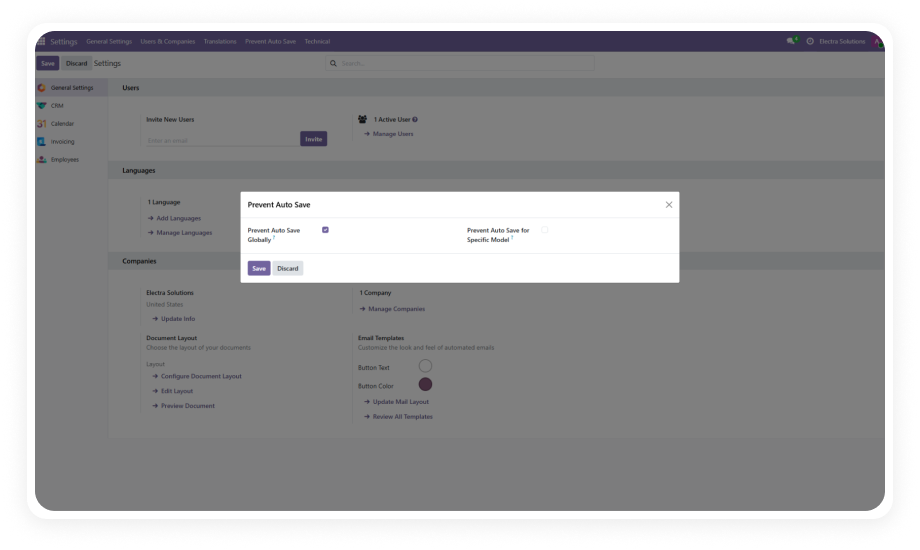
Disable automatic form saving across your entire Odoo instance with a single toggle. Once enabled, no form data is committed to the database without explicit user confirmation.

Why it matters: Organizations handling sensitive financial, HR, or customer data cannot afford accidental overwrites — global prevention ensures every save is intentional regardless of which module a user is working in.

2

Model-Specific Configuration

Selectively choose which Odoo models require manual save confirmation. Configure auto-save prevention only on critical models like Invoicing or HR records while leaving less sensitive forms with default behavior.

Why it matters: Different business processes have different risk profiles — a sales note may not need the same protection as a payroll record, and model-specific control lets you match security to sensitivity.

3

When a user attempts to leave a form with unsaved changes, a clear popup notification appears. Users can then choose to save their work, discard changes, or return to the form to continue editing.

Why it matters: Without visual warnings, users assume their work is saved — popup alerts eliminate the confusion between "saved" and "unsaved" states, preventing both data loss and unintended commits.

4

Toggle On/Off via Checkbox Controls

Enable or disable auto-save restriction through simple checkbox controls in the Settings menu. Administrators can instantly switch between restricted and default Odoo behavior without code changes or module reinstallation.

Why it matters: Business needs change — during data migration you may want auto-save active, while during normal operations you need it restricted. Instant toggling provides operational flexibility without technical overhead.

5

Multi-Module Dependency Integration

Seamlessly integrates with core Odoo modules including CRM, Contacts, Discuss, Employees, Calendar, and Invoicing. The restriction applies consistently across all dependent modules without requiring individual configuration per app.

Why it matters: Data integrity must be consistent across your entire workflow — a restriction that only works in one module while auto-saving in another creates false confidence and leaves gaps in your protection strategy.

6

Settings-Based Administration

All configuration is centralized within Odoo's native Settings interface under the "Prevent Auto Save" menu. No separate admin panels, no external configuration files — everything is managed where administrators already work.

Why it matters: Centralized configuration reduces the learning curve for new administrators and ensures that auto-save policies are visible, auditable, and easily adjustable alongside other system settings.

Who Benefits from Restrict Auto Save?

Role
Primary Use Case
Key Outcome
Finance Manager
Preventing accidental invoice modifications
Accurate financial records without phantom edits
HR Administrator
Protecting employee records from unintended changes
Compliant personnel data with deliberate-only updates
Sales Manager
Controlling CRM record modifications
Clean pipeline data reflecting actual business decisions
System Administrator
Enforcing data governance policies
Organization-wide save discipline without custom code
Training Coordinator
Letting new users explore without risk
Safe learning environment where exploration does not equal modification
Compliance Officer
Maintaining audit trail integrity
Every database change corresponds to a genuine business action
Data Entry Team Lead
Ensuring complete records before submission
No partial or incomplete records saved mid-entry
Operations Manager
Managing multi-model workflows
Consistent data protection across interconnected business processes
⚠  Not the right fit for: Organizations that prefer Odoo's default auto-save behavior, or workflows where rapid record navigation is more important than guarding against accidental saves.

Versions & Documentation

Choose your Odoo version and explore interactive documentation

Restrict Auto Save vs. Default Odoo vs. Custom JS Hacks

Capability
Restrict Auto Save
Default Odoo / Custom JS
Global auto-save prevention
✔ Yes
No / Partial
Model-specific configuration
✔ Yes
No
Navigation popup alerts
✔ Yes
No / Partial
Toggle on/off without code
✔ Yes
No
Multi-module integration
✔ Yes
N/A / Risky
Settings-based admin panel
✔ Yes
No
Upgrade-safe across versions
✔ Yes
No
Free to use
✔ Yes — completely free
N/A / Requires developer time

Set Up Restrict Auto Save in Four Steps

No development required. Full setup in under 10 minutes.

01

Install the Module

Download from the Odoo App Store and install Restrict Auto Save (zehntech_restrict_auto_save) on your Odoo instance. Supports Odoo Online, Odoo.sh, and On-Premise deployments.

02

Access Prevention Settings

Navigate to Settings in your Odoo backend and locate the Prevent Auto Save configuration menu. This is where all restriction policies are managed.

03

Configure Restriction Scope

Enable the global checkbox to prevent auto-save across all forms, or select specific models where manual save should be enforced. Use the model selection interface to pick individual models like Invoicing, HR, or CRM.

04

Verify and Test

Open a form record in a restricted model, make a change, and attempt to navigate away. Confirm that the popup alert appears. Test both the save and discard options to ensure proper behavior.

Technical Details & Compatibility

Requirement
Technical Name
Odoo Versions
Editions
Hosting
Dependencies
Lines of Code
License
Price
Support
Details
zehntech_restrict_auto_save
16.0 · 17.0 · 18.0 · 19.0
Community · Enterprise · Odoo.sh
Odoo Online · On-Premise · Odoo.sh
CRM, Contacts, Discuss, Employees, Calendar, Invoicing
276
OPL-1
Free
FAQ

Frequently Asked Questions

The module only disables automatic saving that occurs when navigating away from a form. Users can still save records manually by clicking the Save button at any time. The purpose is to ensure saves are intentional, not to prevent saving entirely.
Yes, the module offers model-specific configuration alongside the global option. You can select individual models (such as Invoicing or HR) that require manual save confirmation. Models not selected will continue to use Odoo's default auto-save behavior.
A popup alert appears notifying the user that the form has unsaved changes. The user can choose to save the changes, discard them, or stay on the current form. This prevents both accidental data loss and unintended data commits.
Yes, the module is fully compatible with Odoo Online, Odoo.sh, and On-Premise installations. No server-level configuration is required — all settings are managed within the Odoo interface. Installation and setup follow the same process regardless of deployment type.
The module depends on CRM, Contacts, Discuss, Employees, Calendar, and Invoicing modules. Most of these are standard modules already installed in typical Odoo deployments. If any dependency is missing, Odoo will prompt you to install it during module installation.

Take Control of Your
Data Integrity Today.

Stop accidental saves from compromising your Odoo data. Install Restrict Auto Save for free — prevent accidental saves, protect sensitive records, and ensure every modification in your Odoo system is a deliberate business decision.

Zehntech Odoo experts


          You have successfully subscribed to the newsletter

          There was an error while trying to send your request. Please try again.

          Zehntech will use the information you provide on this form to be in touch with you and to provide updates and marketing.